
Setting up text message alert from Teamup
Would you like a text message alert for waitlist spaces?
Read our Step by step guide below or watch the video here!
You can set up your text alerts here. Once you add yourself to a class waitlist, you will get an instant notification to your phone if a space opens up on the waitlist.
If you need help setting up this text alert, please follow the guide below to show more details on how to do it and help you get spaces in our busier classes.
1. Log in to your Teamup account on your computer. Please remember all emails and passwords are personal, we won't know these but you can reset passwords on the login page.
2. You will need to add your phone number to the notification page, click on My Account first to get into the notifications page.

3. Click on the notifications tab, and once there you will see on the upper right of the page the ‘Set up SMS notifications’ button. Click on it to enter your active phone number.

4. Now select the country your SMS number (this is your mobile number) is registered to, and then enter your number. DON'T FORGET TO REMOVE THE FIRST 0 AS THEY USE THE COUNTRY CODE +44..so you need to remove 0. You can also remove your mobile number from this same section if desired. Click save once done.

5. Enter the code you received to the mobile number you entered, and click verify to confirm the activation of the text alert.

6. Once your number is verified, return to My Account ➜ Notifications, where a new SMS tab lets you turn on the notifications you want to receive.
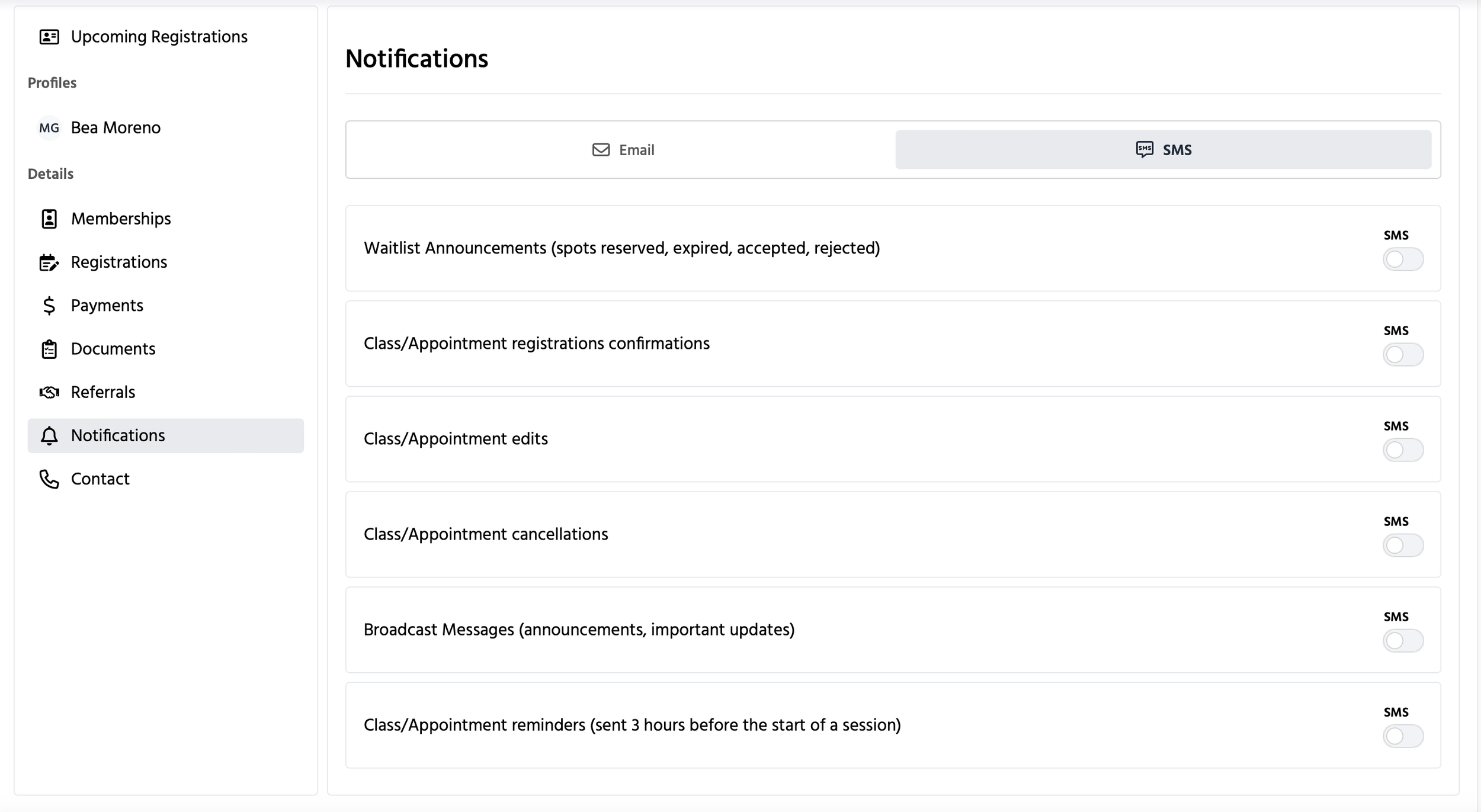
That's it! You're set up and ready to start receiving waitlist notifications via text.